

Control DMX lighting over Art-Net.
DMX Node turns your Android or iPhone into a mobile DMX lighting console. Control fixtures through Art-Net over Wi-Fi, build scenes, create chases, shape effects and manage your lighting setup from one interface.
A hardware Art-Net node is required. The phone does not output physical DMX.
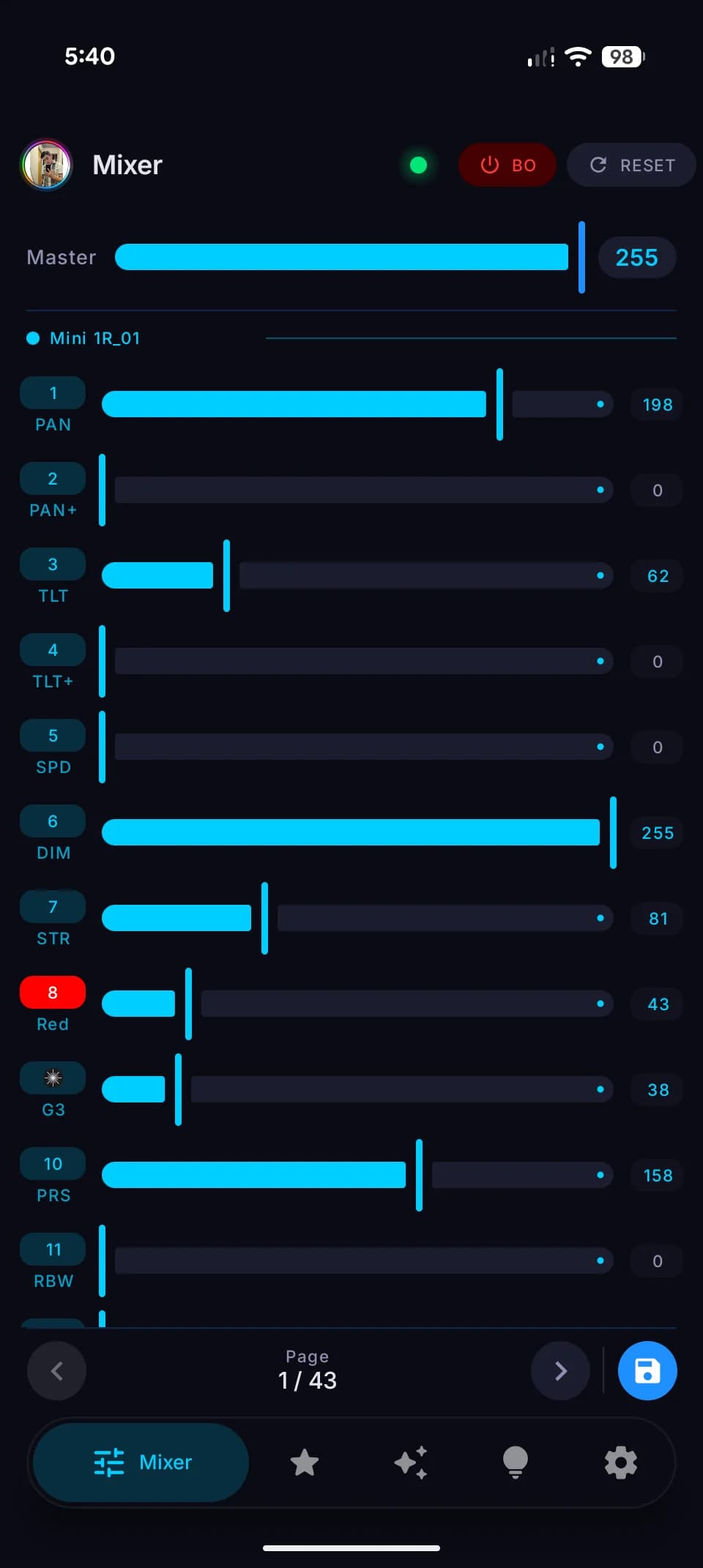
Real screenshots
Direct captures from the app — portrait and landscape, no mockups.
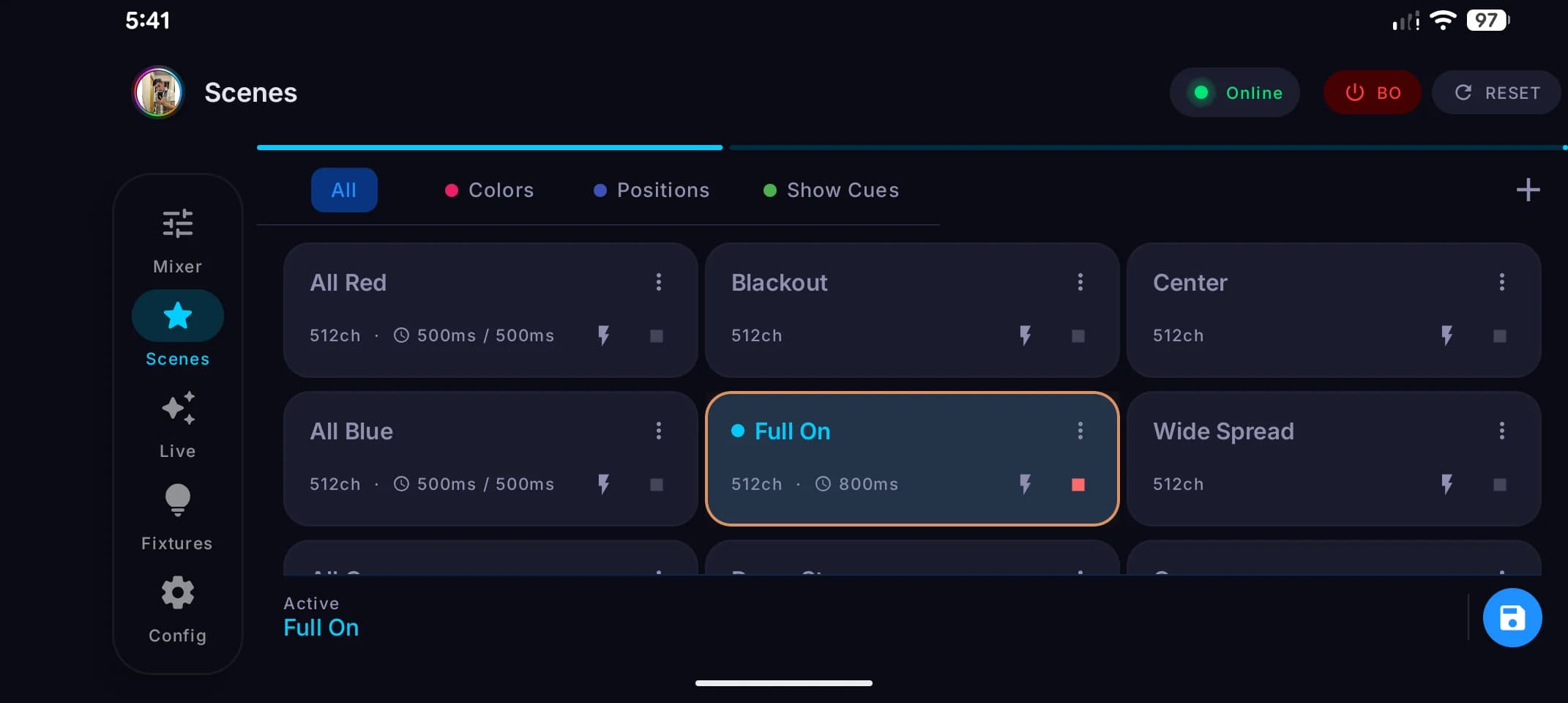
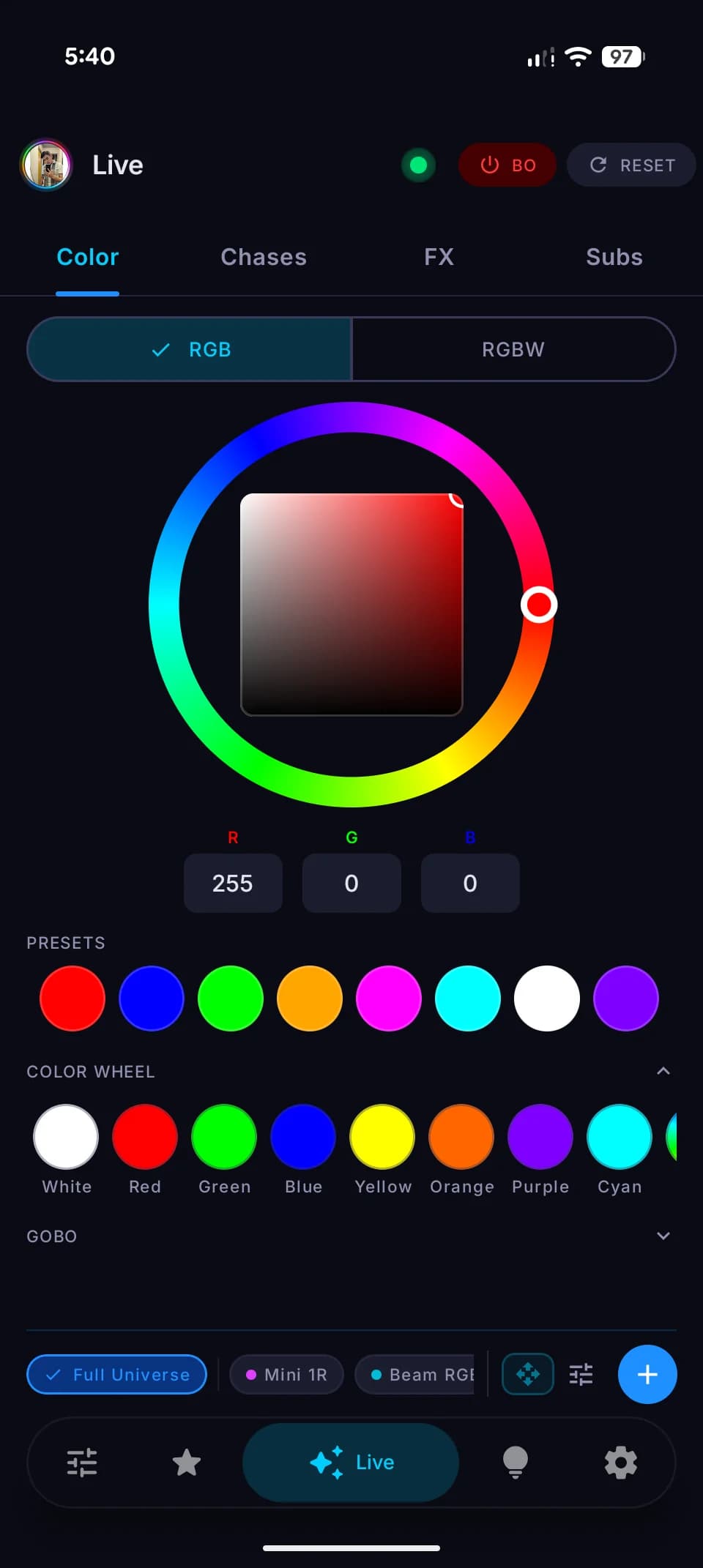
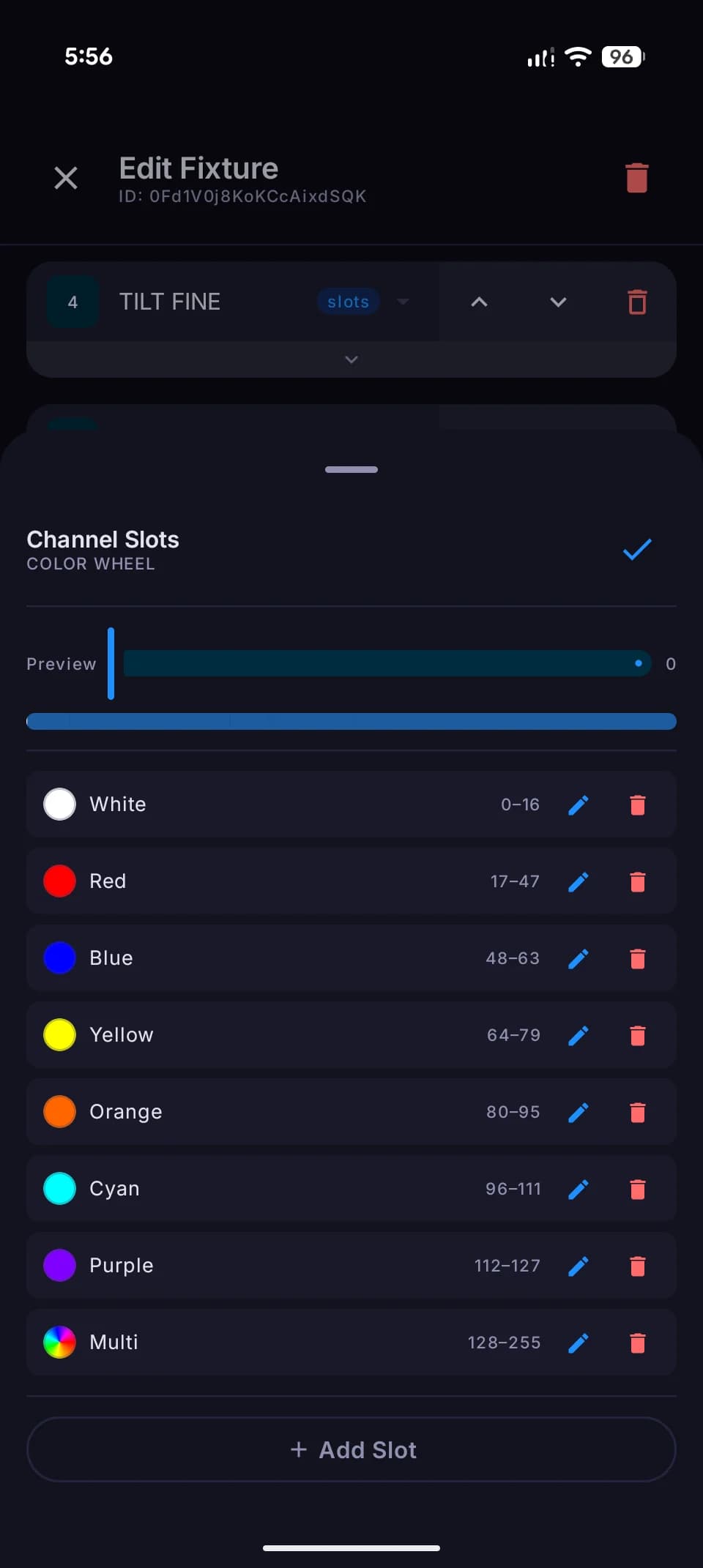
Built Around Real DMX Control
From node setup to live performance in one app.
Configure the Art-Net node
Open Settings in the app, add your Art-Net node, and enter its IP address.
Connect over Wi-Fi
Make sure your phone and the Art-Net node are on the same Wi-Fi network. DMX Node sends Art-Net over UDP to the configured IP.
Define your fixtures
Add fixtures and configure their type, operating mode, channel count, and channel functions.
Assign DMX channels
Patch each fixture to a start address in the 512-channel universe.
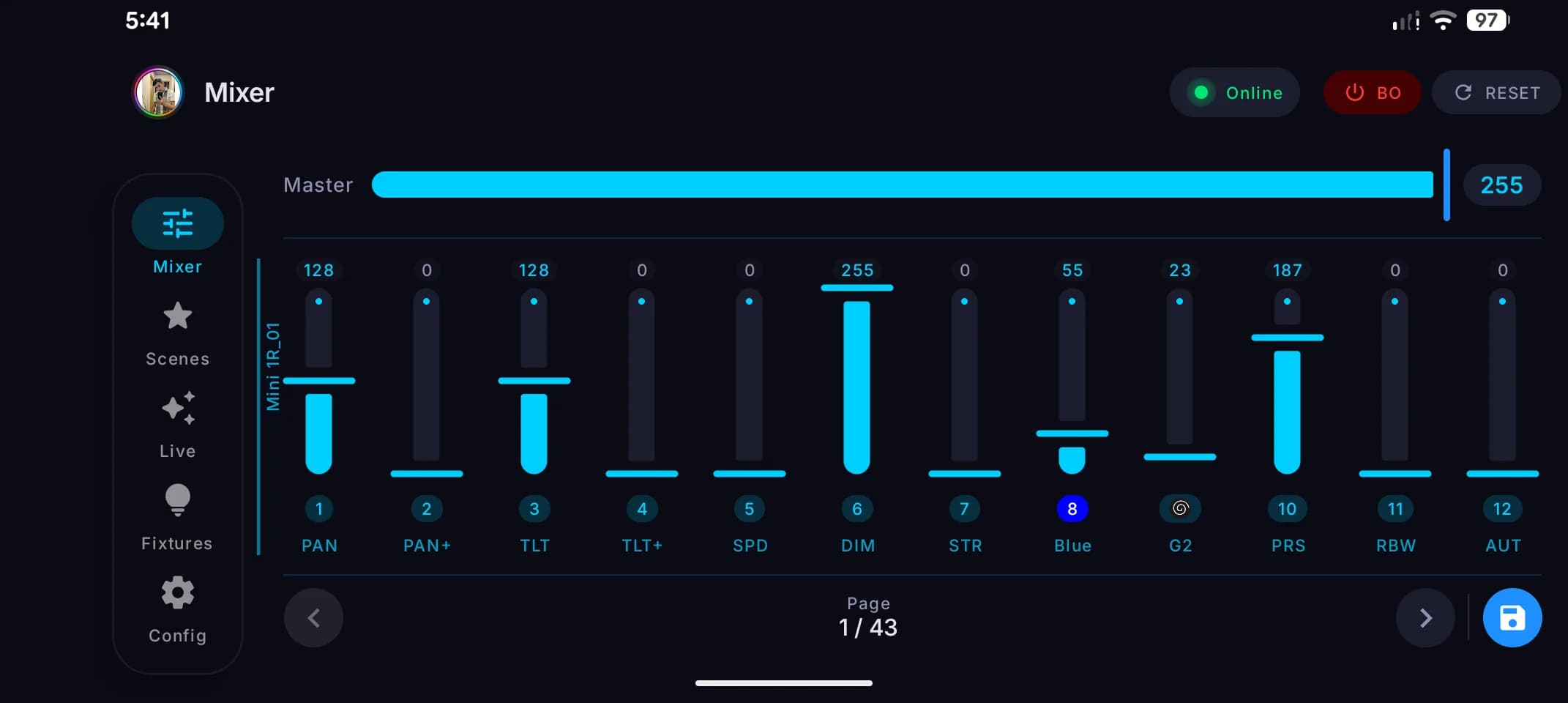
Control from the Mixer
Use the Mixer to adjust individual channel values in real time.
Build scenes
Save lighting states as scenes. Organize them into banks for your show.
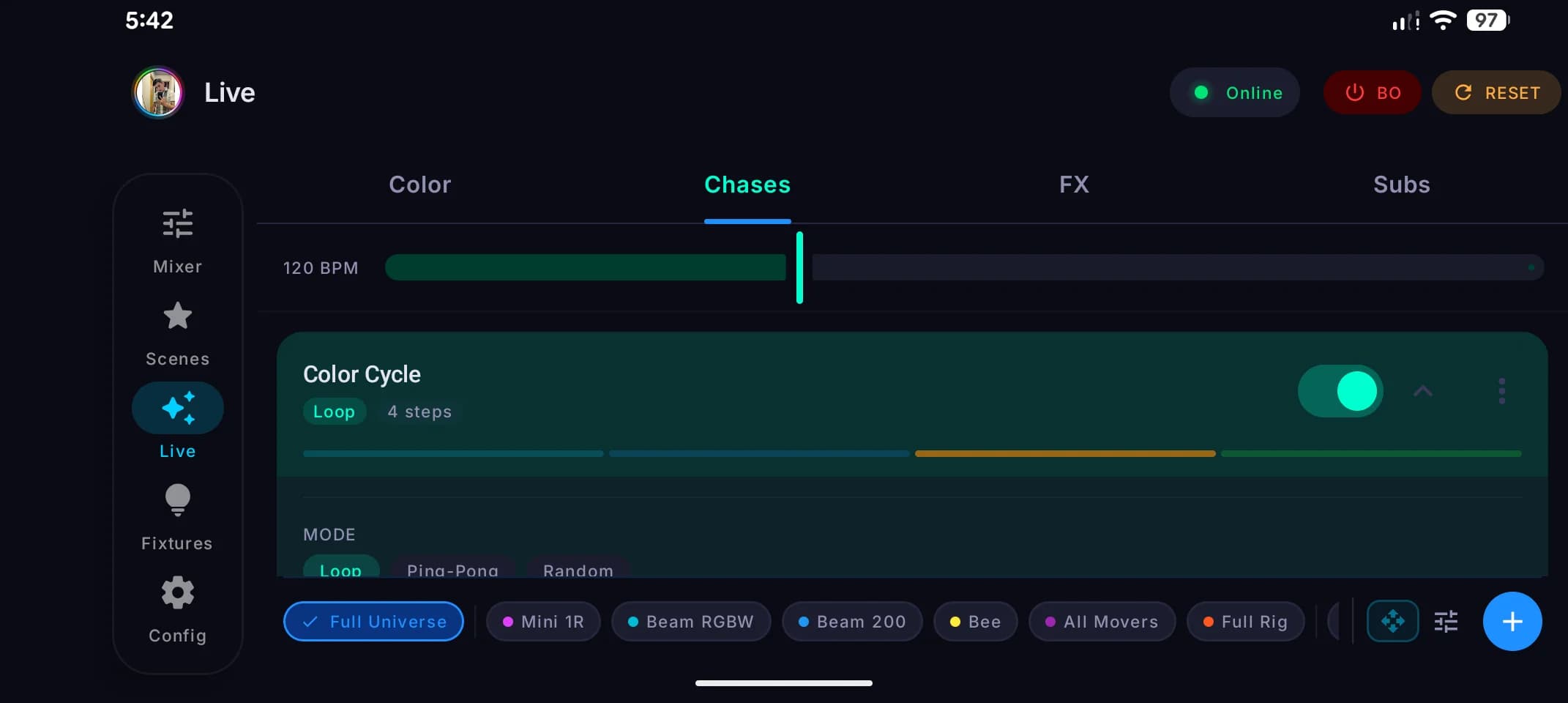
Perform with Live tools
Use Submasters, Chases, Color, and FX for expressive real-time control.
Direct control over 512 channels.
The Mixer gives you a fader for every channel in your DMX universe. Adjust levels precisely, set a global master dimmer, or trigger blackout instantly. Faders are paginated across the full 512-channel space.
- 512 DMX channels
- Paginated fader layout
- 0–255 value per channel
- Global master dimmer
- Instant blackout
- Real-time Art-Net output
Each output port drives one 512-channel universe. Premium unlocks additional ports for multi-universe output.
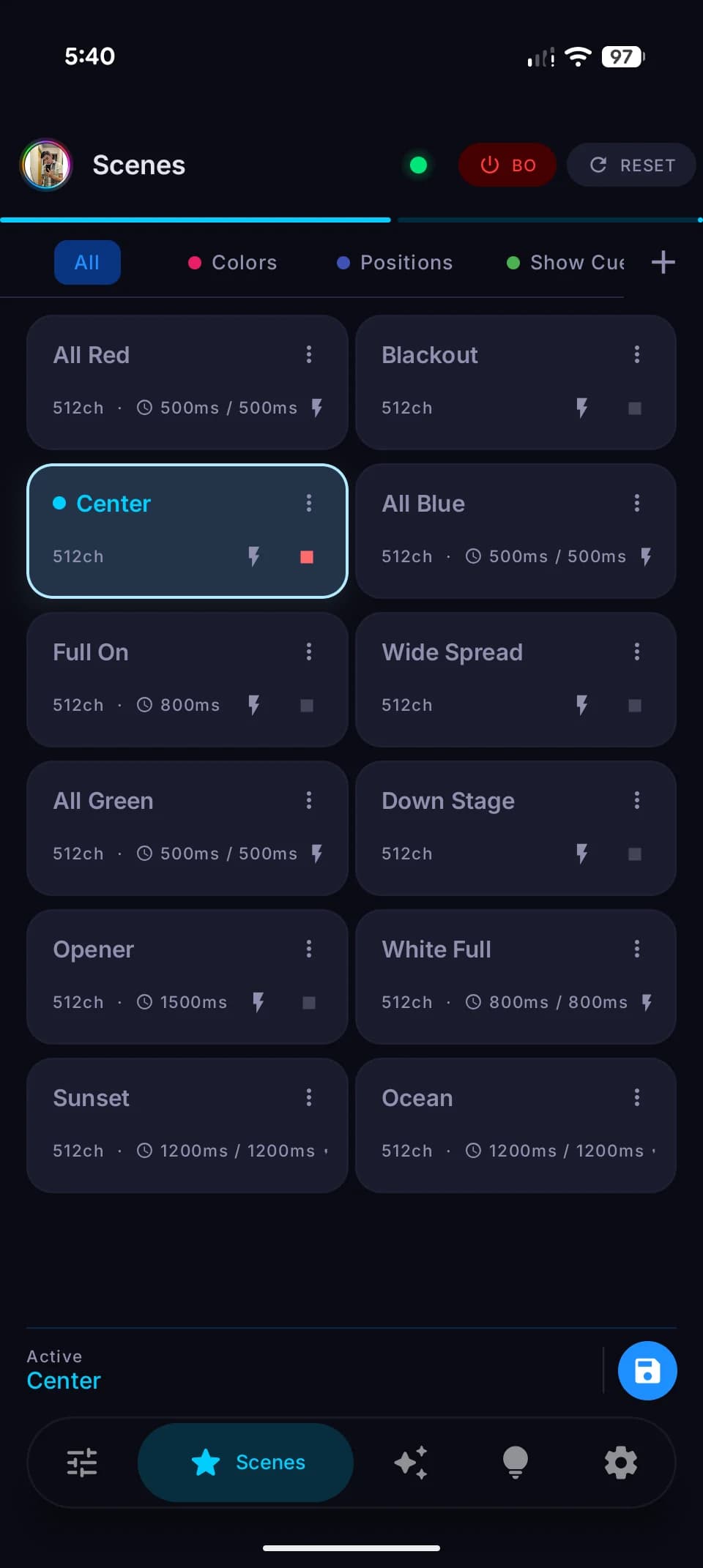
Save and recall lighting states.
Capture the current state of your DMX universe as a scene. Build a library of looks and recall them with fade transitions during your show.
- Save channel snapshots
- Instant recall
- Scene banks
- Fade-in
- Fade-out
- Crossfade
- Scene ordering
Performance-oriented control.
The Live area provides tools for expressive real-time control layered on top of your base DMX output.
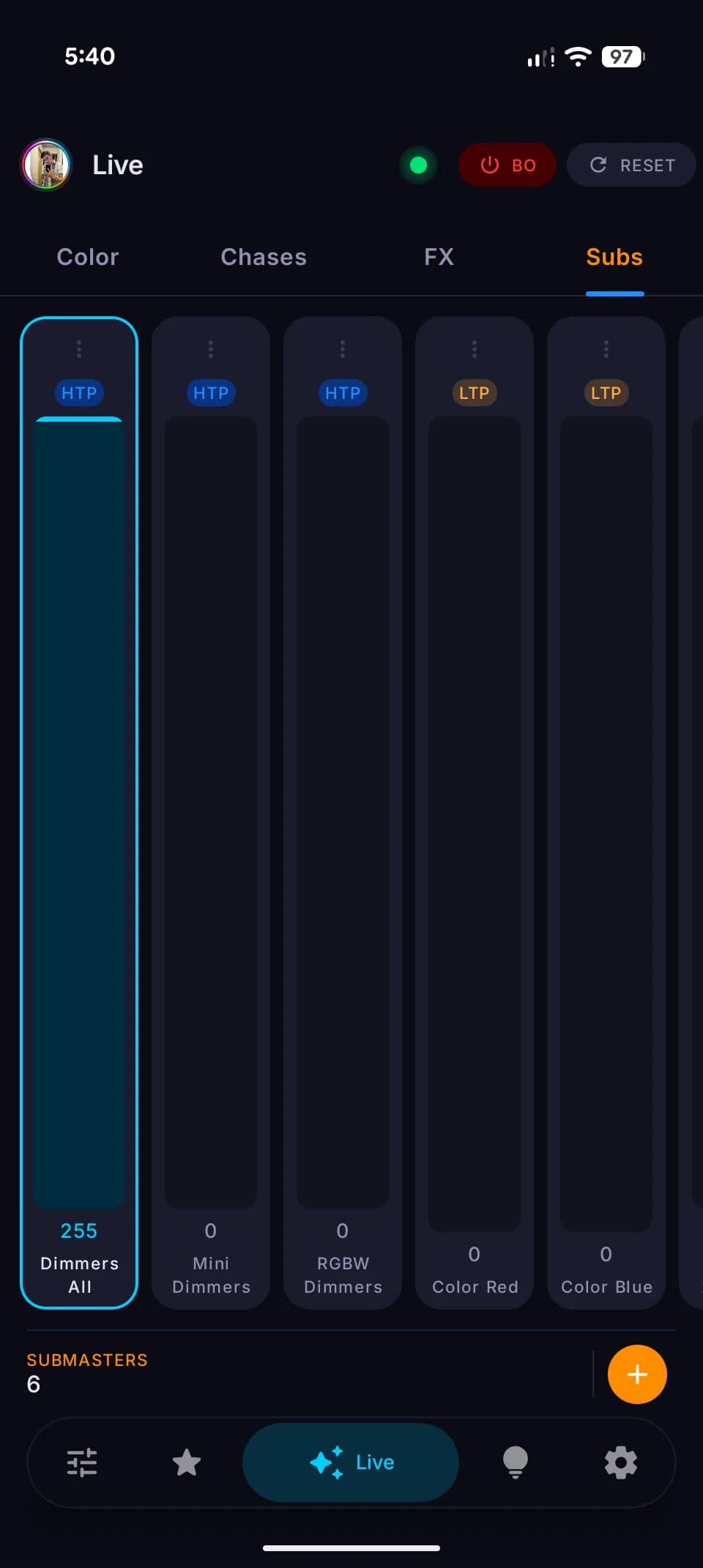
Submasters
Virtual faders that layer over the base output. Control channels or groups independently from the main mixer values.
HTP — Highest Takes Priority
The higher value between the submaster and the existing channel level wins. Good for additive intensity layers.
LTP — Latest Takes Priority
The submaster's value overrides the current channel level. Good for color or position overrides.
- HTP mode
- LTP mode
- All-channel scope
- Specific channel scope
- Group scope
- 0–255 levels
- Optional source scene
Chases
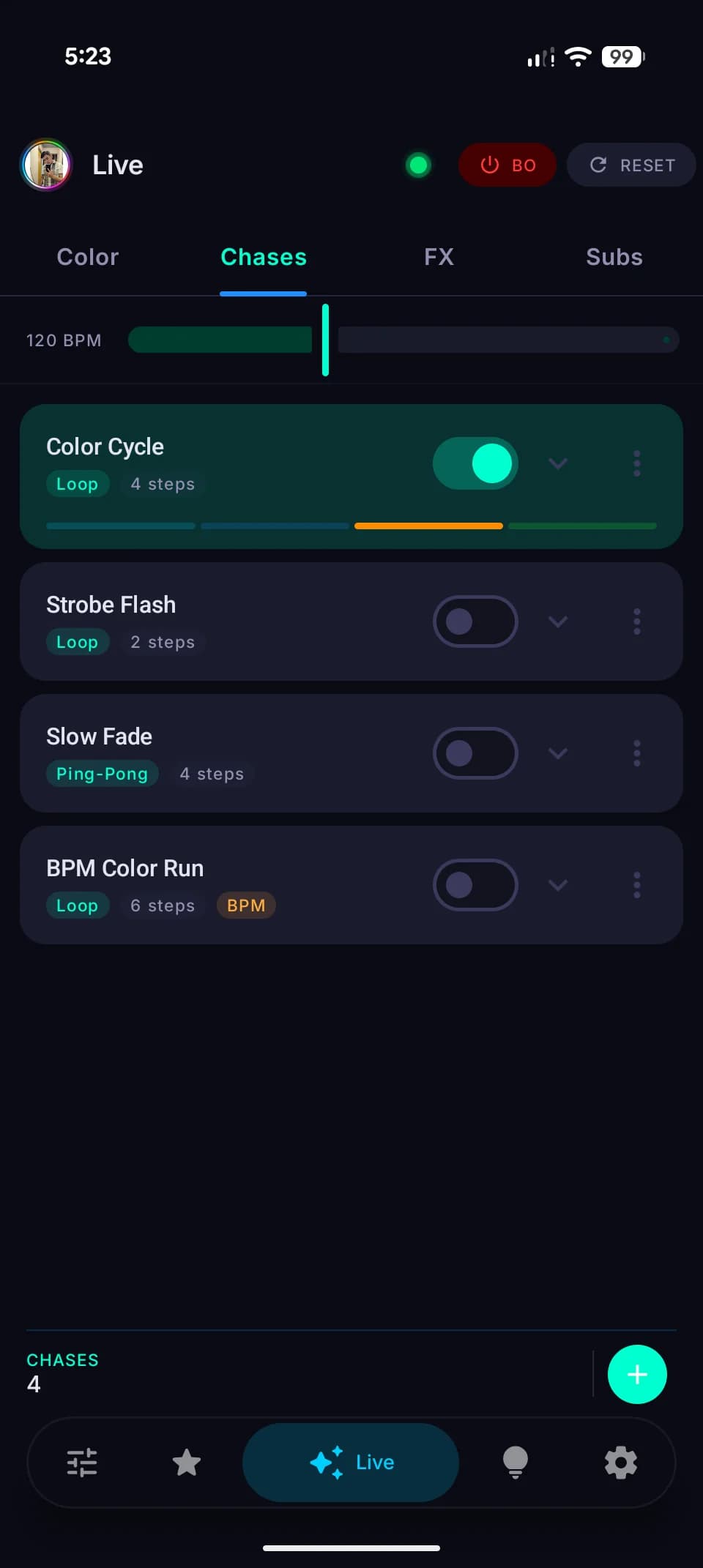
Build sequences from saved scenes and play them back automatically. Sync step timing to BPM for music-driven shows.
- Multiple steps
- LOOP mode
- PING_PONG mode
- RANDOM mode
- BPM synchronization
- Tap tempo
- BPM subdivisions
- Per-step duration
- Fade between steps
BPM sync is internal. External MIDI clock input is not currently supported.
Color & Movement
Select fixtures and control their color through an HSV interface. Directly drive pan and tilt for moving fixtures with a live joystick.
- HSV color picker
- RGB conversion
- Fixture selection
- Brightness control
- Programmer layer
- Pan/Tilt live control
- Pan/Tilt joystick
Color control requires the fixture to have RGB or RGBW channels defined in its mode. Behavior depends on the fixture's channel mapping.
Non-destructive effect layers.
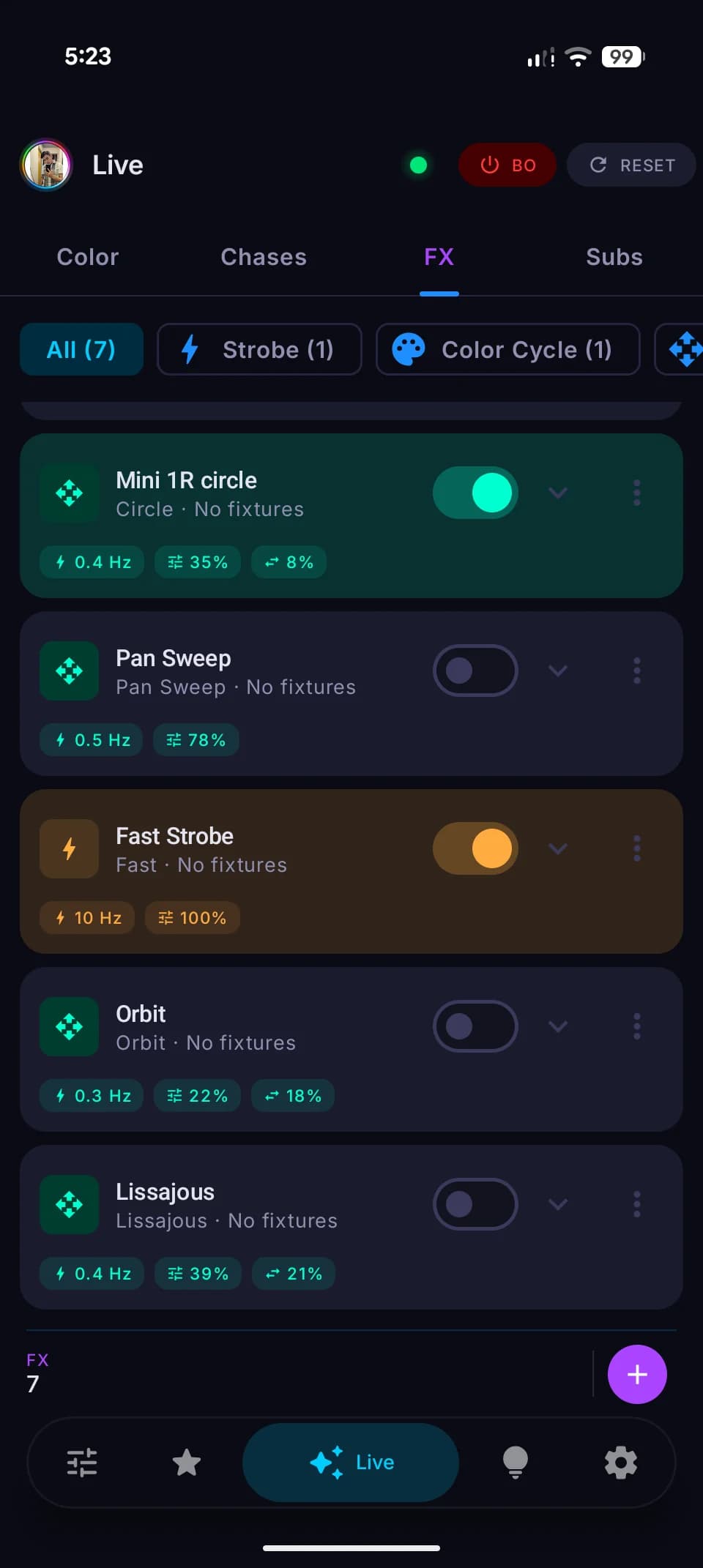
FX layers produce value deltas that combine with the rest of your DMX output — they do not replace your scenes or mixer levels.
Disabling an FX layer instantly removes its contribution. The rest of the output is unaffected.
Movement patterns
User-defined lighting fixtures.
Configure each fixture with its type, operating mode, channel count, and channel mapping. Assign it a start address in the DMX universe.
Fixture types
DMX Node does not include a built-in fixture profile library. All fixture modes are configured manually.
Connection
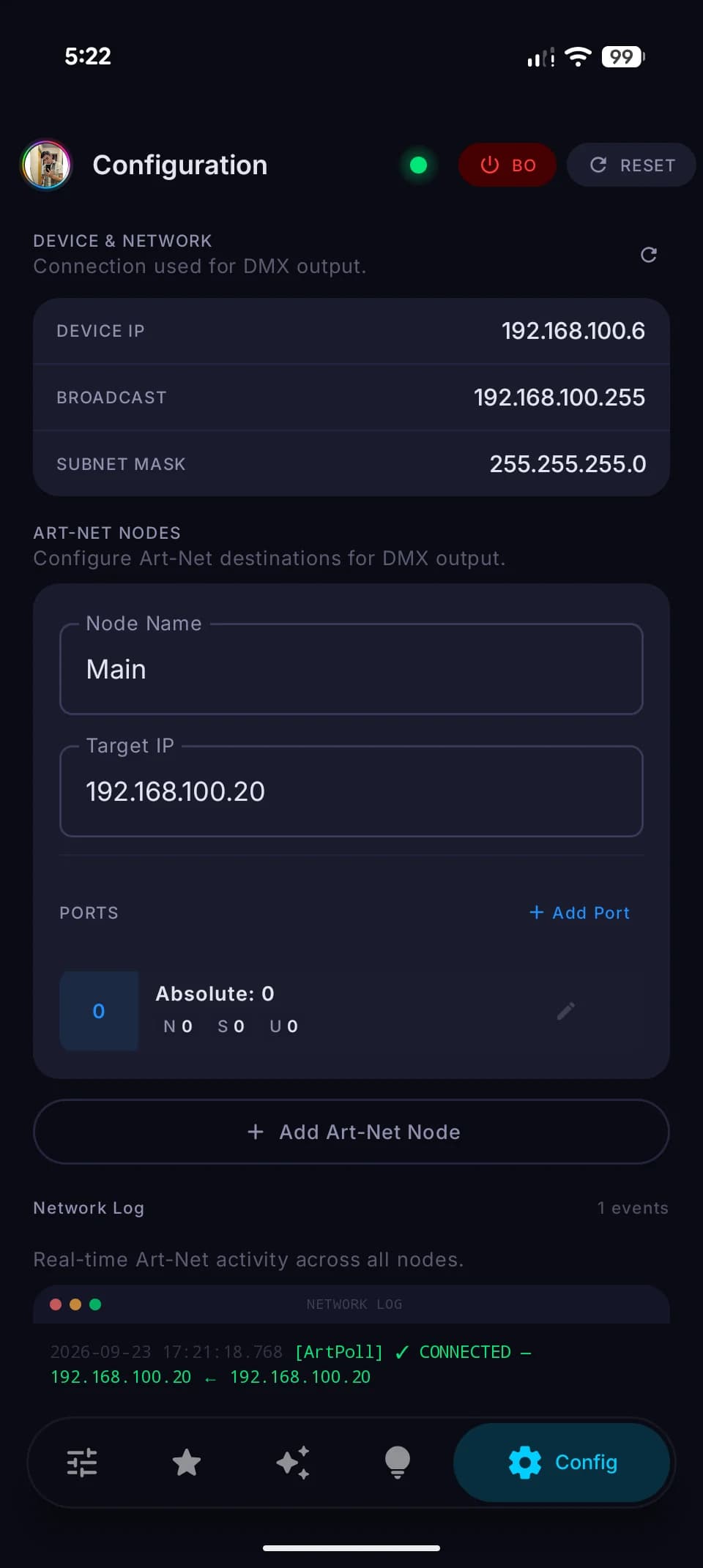
DMX Node connects to your Art-Net node over Wi-Fi. Configure the node's IP address and output ports in Settings. All DMX data travels as Art-Net packets over UDP.
Settings configuration
- Open Settings in the app
- Add your Art-Net node and enter its IP address
- Port 0 is pre-configured for universe 0
- Tap Apply — DMX Node routes Art-Net output to the node
- Device network information (IP, subnet) is shown for reference
- Premium: add more ports to route additional universes
Settings fields
All DMX data travels as Art-Net / UDP over Wi-Fi. Phone and node must be on the same network.
Who Uses DMX Node
For anyone working with DMX lighting in hands-on environments.
Small stage lighting
Bars, club stages, small theaters.
Event lighting
Corporate events, parties, pop-up venues.
DJ lighting
Lighting rigs in DJ booths and sets.
Theater projects
School productions and community theater.
DMX experimentation
Learning and experimenting with DMX control.
DIY Art-Net builds
Custom DIY Art-Net systems.
Lighting technicians
A compact mobile console for smaller rigs.
Lighting enthusiasts
Home studios and personal lighting rigs.
Ready to control your first fixture?
Physical DMX output requires an Art-Net-compatible hardware node.
Get DMX Node
Available for Android and iOS. Physical DMX output requires a hardware Art-Net node.